Sign In & Menu Navigation
Overview
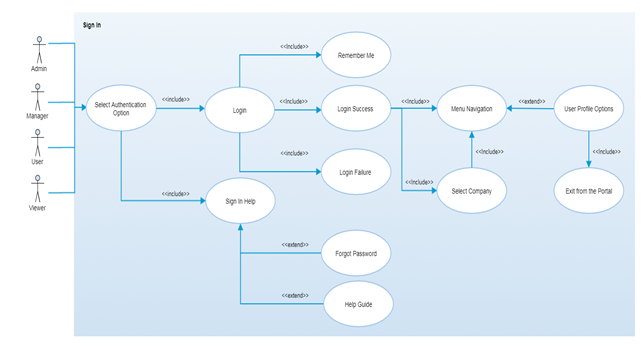
After selecting one of the authentication methods (currently supported : Okta, AzureAD and Keycloak), users are able to sign in to the portal. Users login to the system using their access credentials (username/email and password) and then are required to select the company (or tenant) from the list of associated companies (if many) to get the access to various functions of the portal. If the user is associated with only one company then they will be automatically redirected to product line section.
Preconditions: User needs Admin/Manager/User/Viewer rights to sign in to the portal.
Step-by-Step Process
Step 1 – Select Authentication Option
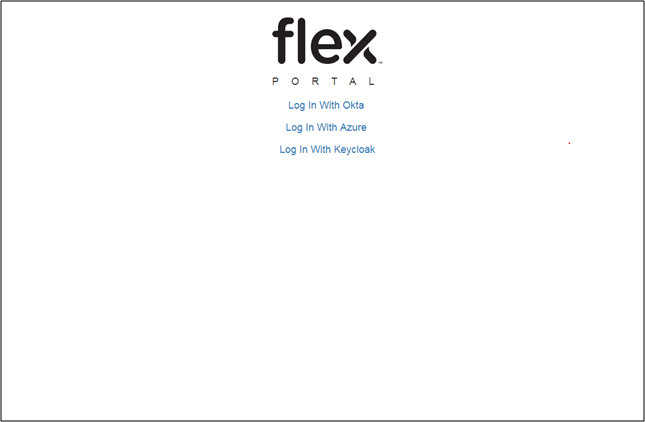
- The sign in page of FlexConnect portal contains three different options for the authentication type:
- Okta
- Azure
- Keyclock
- By clicking on any of the options, the user will be directed to the “Login” page. (Refer to Step 2)
Step 2 – Login
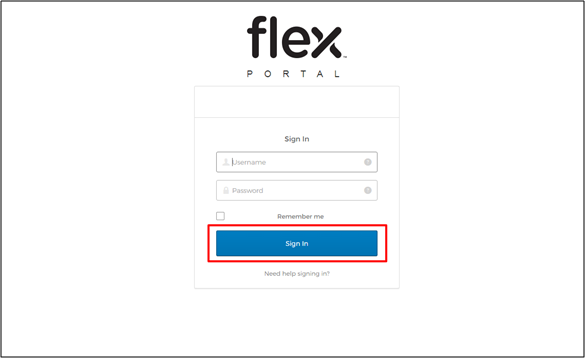
- Enter valid Username/Email and Password
- After clicking the “Sign In” button to login into the system, the user's credentials will be validated
- Sign In will fail in the case of an invalid combination of the username & password or in the case of using the wrong password
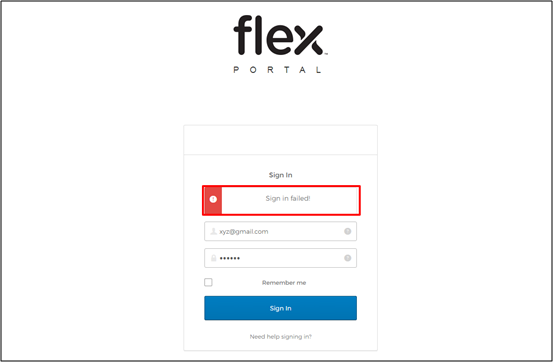
- After successful sign In,
- If the user is associated with multiple companies, they will be directed to the “Select Company” page.
- If the user is associated with only a single company, they will be direced to the “Product Line” page automatically
- "Remember Me" Checkbox
- Select the “Remember Me” checkbox for the user's email/username to be pre-filled the next time they sign into portal using the same computer and browser
- “Need Help Signing In” link opens the following two options:
- Forgot Password: Navigates users to the “Reset Password” page. (Refer Step 3)
- Help: Navigates users to the “Help” page
Step 3 – Reset Password
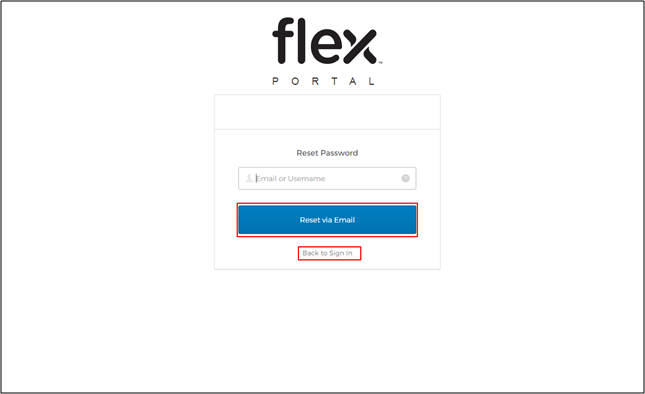
- "Back to Sign In"
- Will redirect the user back to the “Sign In” page without taking any action
- To reset the password, the user inserts their primary email address or user name listed in user account settings and clicks the "Reset via Email" button
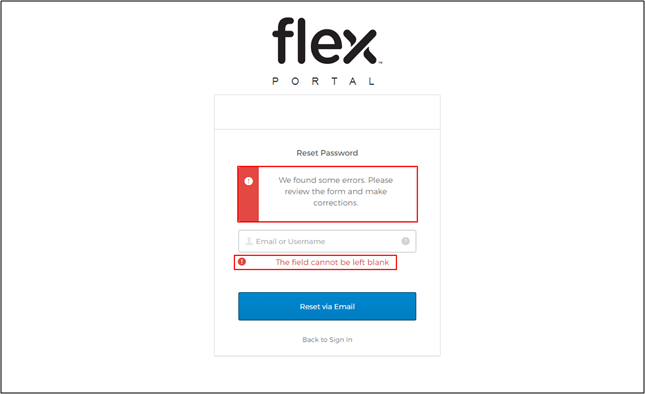
- The following error messages will occur due to the following:
- When the user does not insert anything into the textbox, an error message will appear
- When the user inserts the wrong email/username into the textbox, an error message will appear
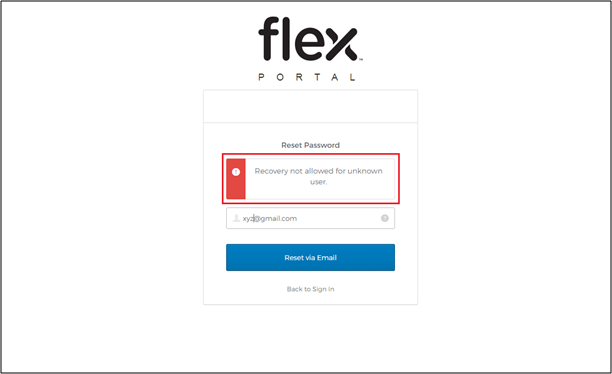
- The following error messages will occur due to the following:
- If a valid email/username has been entered,
- The user will get a system generated email to that particular email ID.
- The user needs to follow the steps mentioned in the email to reset the password
Step 4 – Select Company
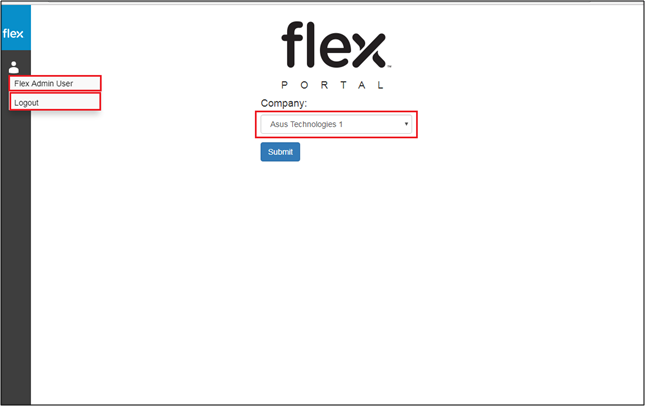
- If the user is associated with multiple companies, after signing in they will be required to select a company from the drop down menu to complete the login process
- The drop down menu lists all companies (or tenants) associated with the user
- “Submit” button
- Navigates users to the FlexConnect portal for the selected company
- By clicking on profile icon in the left-hand navigation, two options appear:
- Flex Admin User: Navigates users to the “Manage Tenants” page
- Logout: Once clicked users will be logged out of the system and redirected to the ‘Login’ page
Step 5 – Menu Navigation
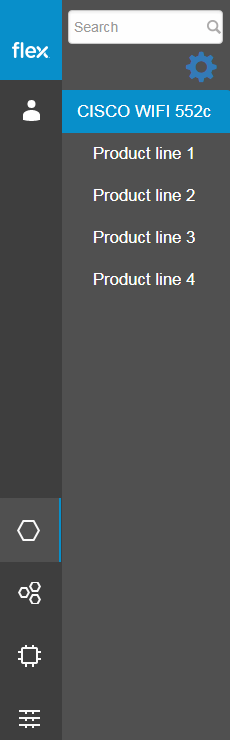
- After a successful login, the user can navigate to various sections of the portal using the left side panel options, that are explained below:
 Navigate to other Sub Sections
 Navigate to Product Line Section
 Navigate to Reporting Group Section
 Navigate to Packages Group Section
 Navigate to OTA Section
Step 6 – User Profile Sub Sections
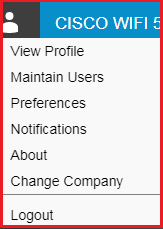
- The user can view the following sub sections:
- View Profile: Navigates user to the “View Profile” page
- Maintain Users: Navigates user to the “Maintain Users” page.
- Only System admins and managers are able to view this option
- Preferences: Navigates user to the “Preferences” page
- Notifications: Navigates user to the “Notifications” page
- About: Shows user the portal version detail and the API version detail
- Change Company: Navigates user to the “Select Company” page
- Only users who are associated with multiple companies are able to view this option
- Logout: Allows user to exit the portal
Notes
- Only System admins and managers have access to the “Maintain Users” sub section
- Only users who are associated with multiple companies have access to the “Change Company” sub section